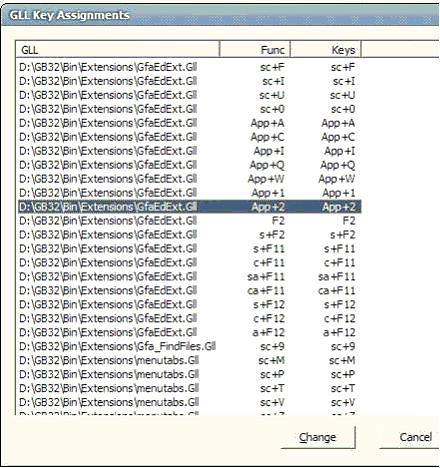
To manage the keyboard shortcuts for all loaded GLLs, click the Assign Key button in the "Gfa Extension Link Libraries" dialog box. Now you'll see the "GLL Key Assignments" dialog box.
The dialog box lists all keyboard shortcuts subs in the currently loaded GLLs.
The first column specifies the editor extension and the second column the Sub (Func) that is contained in that extension.
For instance, when the loaded GLL extension "D:\GB32\Bin\Extensions\GfaEdExt.Gll" contains a sub Gfa_Ex_F, then the column 'Func' specifies "sc+F". If it contains a sub Gfa_CAF11 then the Func column shows ca+F11, etc.
The third column 'Keys' specifies which keyboard shortcut is actually assigned to the subroutine Func. Initially, the value for 'Keys' is empty. By double clicking the entry in the list box or by clicking the command button 'Change' you can specify which keyboard shortcut is to execute the event.
In the picture, the Sub Gfa_App_2 uses App + 2 for executing the sub. To override the default settings, select the button Assign Key ("Tastatur") in the Extension Manager dialog box.
To change a key assignment select the GLL sub (Func) you want to re-assign and select Change ("Tastenbelegung ändern"). The following dialog box is displayed.
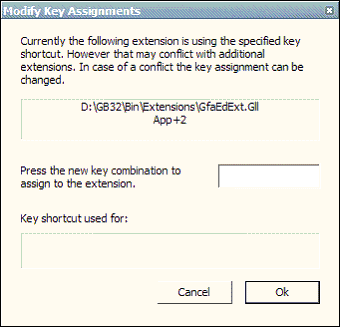
In the Modify Key Assignments you can assign a new key combination. Press the key combination you want to use for the selected function and see if it is used. When the key combination is already in use, the GLL it is assigned to is displayed below. Choose a different keyboard shortcut and close the dialog box.
{Created by Sjouke Hamstra; Last updated: 12/05/14 by James Gaite}